Products and your first project
Understand Work, Enterprise and OS and complete a practical website, office or video workflow.
Based on the 2 November 2026 independent edition · Download the complete Chinese PDF or Word manual
Start by completing a small real task in iPolloWork. Connect additional services when your workflow needs them.
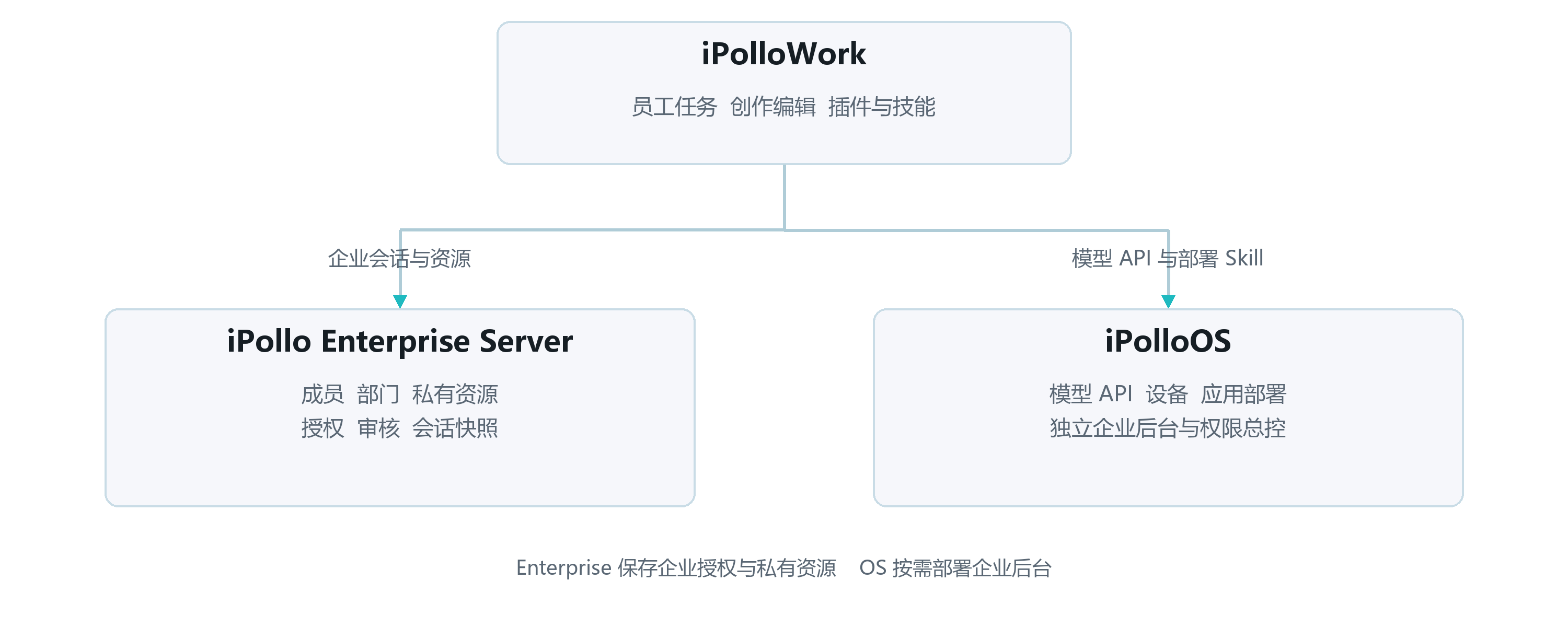
How the products fit together
Describe tasks, work with files and code, inspect designs and videos, and edit the results.
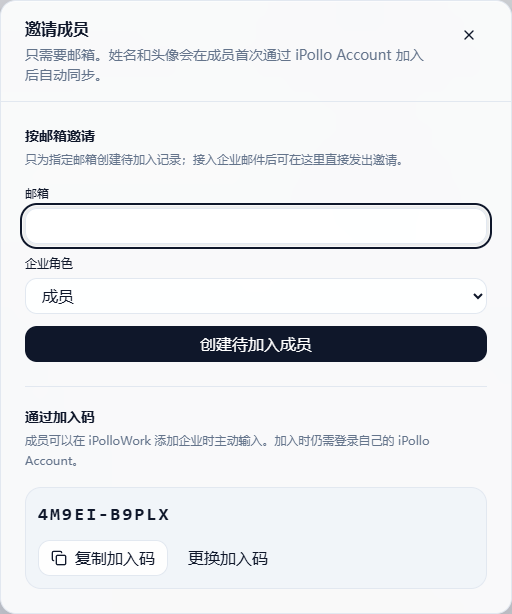
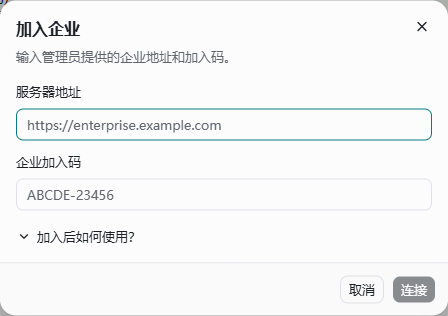
Private membership, departments, templates, extensions and session snapshots.
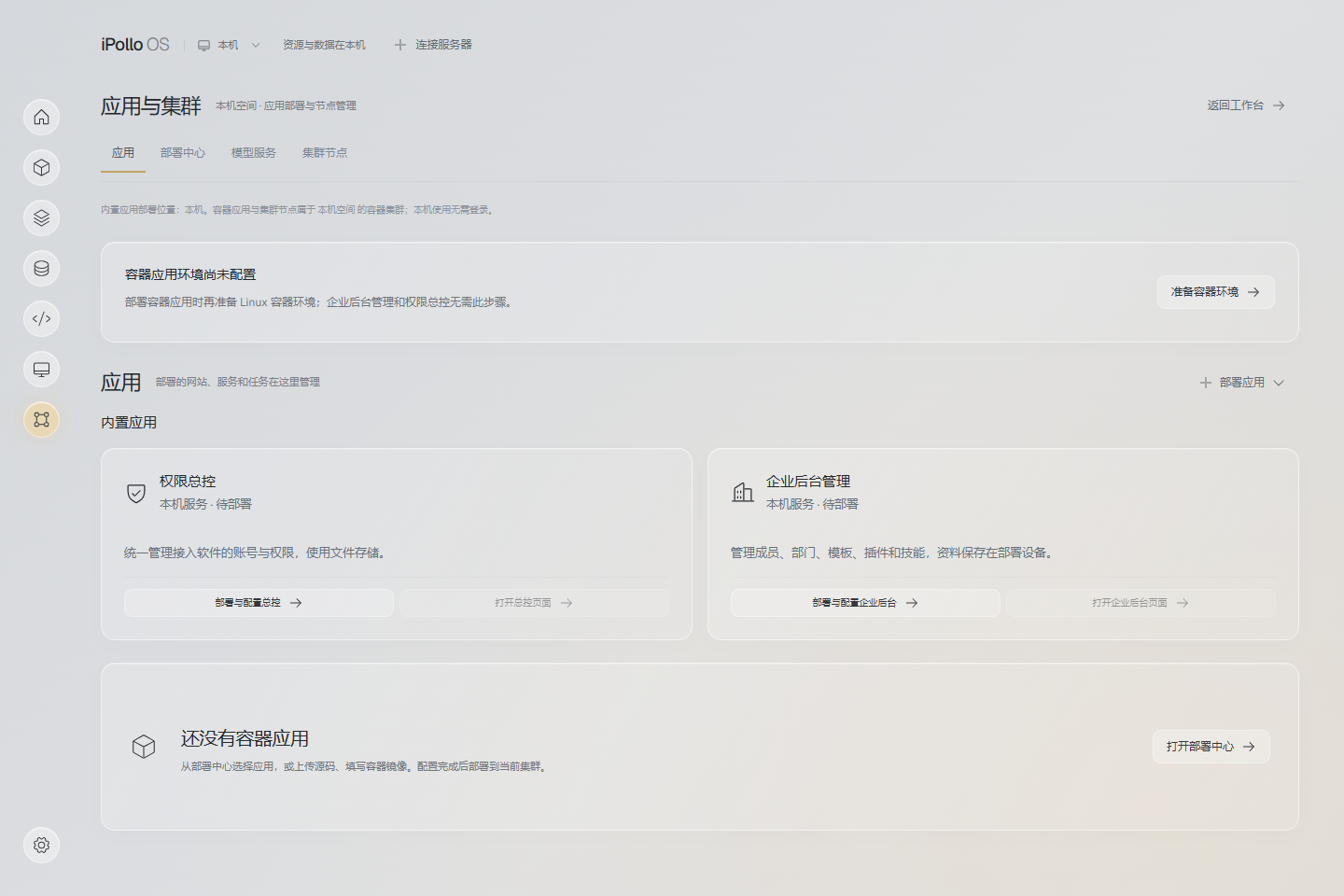
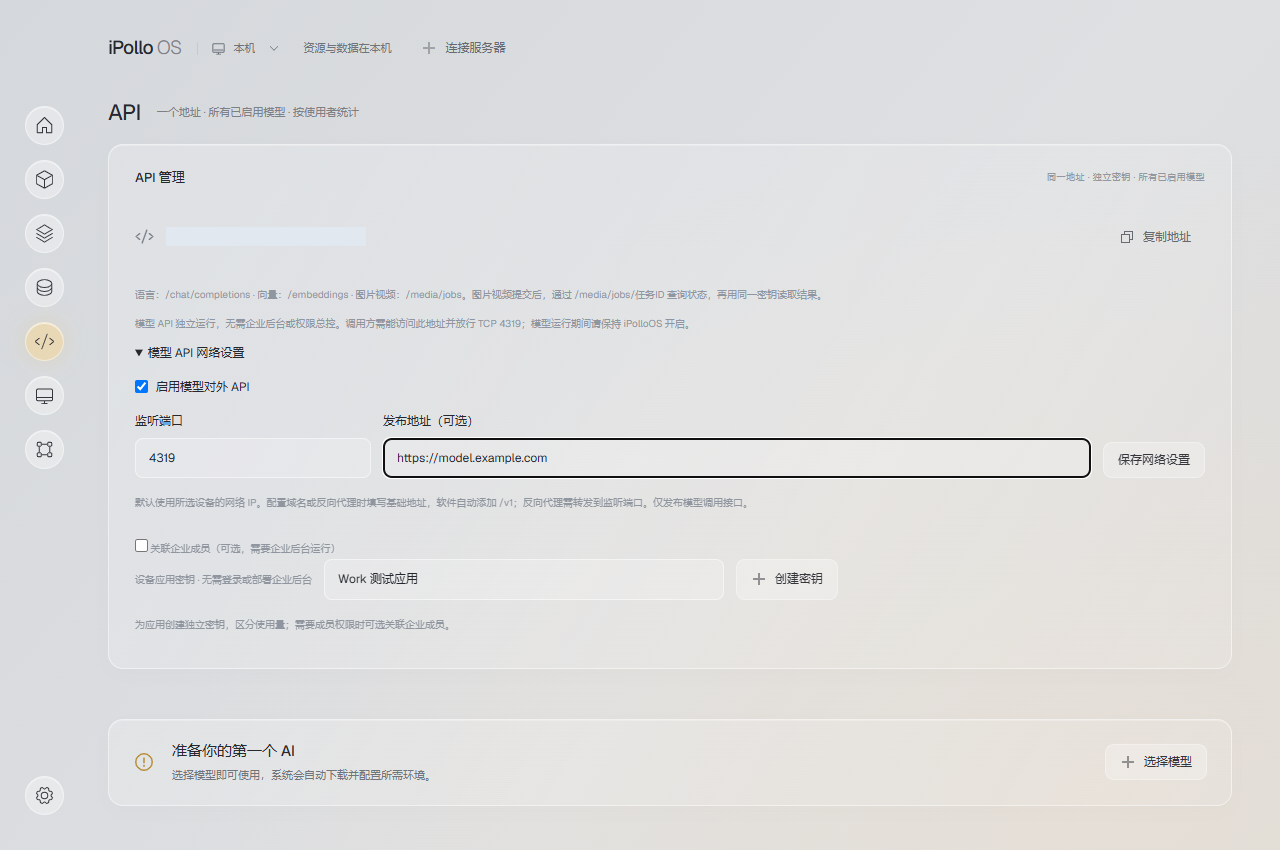
Models, devices, a unified inference API and application deployment.
| Goal | Suggested combination | First check |
|---|---|---|
| Personal creation and office work | Work + a working model | Save a result and edit it again. |
| Private team resources | Work + Enterprise | Verify resource listing and download permissions. |
| Models on your devices | Work + OS | Test the OS API and a reply inside Work. |
| A complete team platform | Combine services as needed | Validate identity, sessions, model access and deployment separately. |
Prepare your first task
- Open the latest release and choose an installer for your OS and CPU. If no matching installer is available, use the source setup.
- Select a writable local project directory. Use a separate test folder initially.
- Connect a model provider and confirm its API key, account and quota. To use OS, follow the local model guide.
- Send a short request and verify a real response. Website sign-in, provider API credentials and runtime accounts are separate settings.
Scenario 1: An editable website
- 01Pick a starting point
Open website creation or choose an existing page template.
- 02Describe the outcome
Specify the audience, content, structure and output format.
- 03Inspect the preview
Check copy, images, links and desktop and mobile layouts.
- 04Keep editing
Edit the canvas or source, then continue in the same session.
Adapt this example to your product:
Create a product introduction page for teams of 20–200 people.
Include positioning, three real capabilities, a workflow and a contact entry.
Do not invent prices, customers or metrics; mark missing information for review.
Deliver editable HTML and check mobile layout and all links.
Completion check: files exist in the project, the result reopens, an edited heading appears in the preview, and buttons reach their intended destinations. Public hosting also needs a domain, HTTPS and any required form backend.
Scenario 2: Documents and office work
- Add the source material and identify what can be shared publicly.
- Specify the reader, length and deliverable: comparison table, action list, report or presentation.
- Ask for sources and explicit missing information; verify dates, prices and metrics against the originals.
- Open the actual output file and inspect tables, pagination, references and editability before requesting revisions.
Output depends on the selected tool and template. If you need a native Office file or fully editable PowerPoint, specify that before starting and open the exported file to verify it. HTML slides do not automatically provide native PPT editing.
Scenario 3: A short video
- Choose a video template and specify the topic, duration, aspect ratio, scenes and assets.
- Inspect scenes and the timeline in Studio; adjust copy, imagery, colors and pacing.
- Preview and export a draft. Check duration, dimensions, audio and subtitles.
- Export the delivery version after approval, keeping the editable project and assets.
See the Video workspace and the historical technical example. Rendering depends on fonts, assets, browser and encoding tools; a working preview is only one part of validation.
Find a capability by task
| Task | Capability | Check |
|---|---|---|
| Change a repository | Projects, tasks, files and diff review | Review actual edits and run relevant checks. |
| Add requirements during execution | Session instructions and review | Confirm the next steps follow the new constraint. |
| Select an execution engine | OpenCode, optional DSH / Codex Harness | Verify engine-specific accounts and tools. |
| Research pages or process media | Browser tools and installed extensions | Verify sources, login and authorization. |
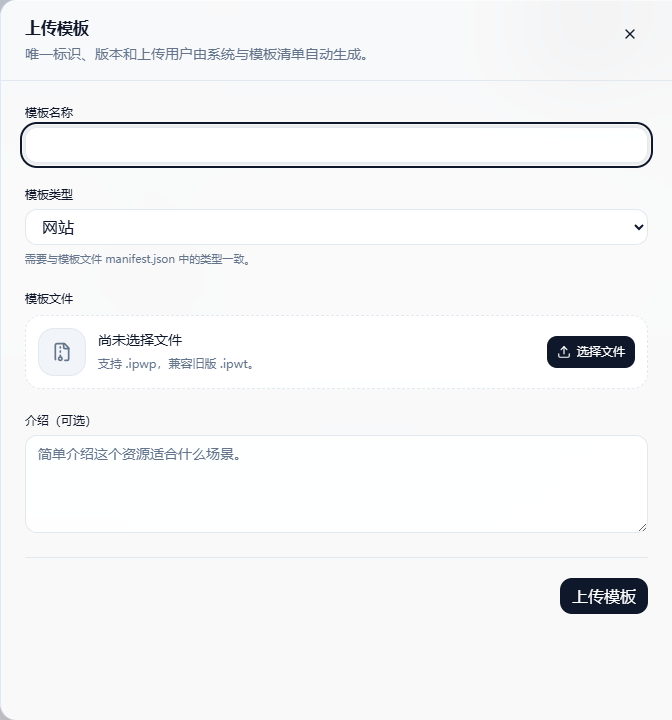
| Reuse a result | Templates and personal templates | Preserve editable source; approve enterprise submissions. |
| Add task capabilities | Skills, plugins and MCP | Check the source, version, dependencies and service access. |
| Retrieve or deliver work | Search, export and the project folder | Check file completeness and remove unnecessary private data. |
| Run a recurring summary | Scheduled tasks | Keep execution online and verify a manual run first. |
Turn a workflow into a team resource
Templates reuse artifact structure; Skills reuse task methods; plugin packages organize extensions; MCP connects tools and services. Installing an extension does not provide its external accounts or quota.
Work templates use .ipwp (with legacy .ipwt support); plugin archives use .ipollowork-plugin. Follow the enterprise guide for submission, approval and scoped access.
Licensing and source baseline
Work uses a Source Available license. Individual non-commercial use and internal non-commercial use by fewer than three total users must meet its conditions. Any use by three or more total users, and commercial use, hosted services, paid delivery or white-label use, require prior written authorization. Preserve branding and notices. Read the current LICENSE for the full terms.
Based on the 2 November 2026 independent ecosystem manual. Enterprise availability depends on the deployed service and applicable agreement.
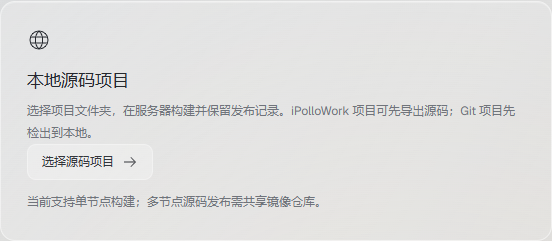
Source interface examples
Screenshots below are taken from the current independent manual. Full illustrated procedures are available from the document library.