Local plugin tutorials
Purpose, preparation, real screenshots and steps for 20 default personal plugins.
Based on the 3 November 2026 integrated edition · iPolloWork 0.50.33 · Download the complete Chinese PDF or Word manual
Screenshots show the source application in Simplified Chinese. New task, schedule and editor examples use sample data; verify actual saves, connections and outputs in your project.
The manual covers 20 default personal plugins. Install and enable each plugin, configure its own connection, then verify a small real action. Source screenshots show entry points and configuration; they do not claim that every external account has been connected or every business action completed.
Install and open a plugin
Plugin details show resources, enabled state and connection settings.
Prepare: Extensions → Plugins → Personal.
-
Find and install the intended plugin; inspect its enabled resources.
-
Complete its connection configuration when authorization is required.
-
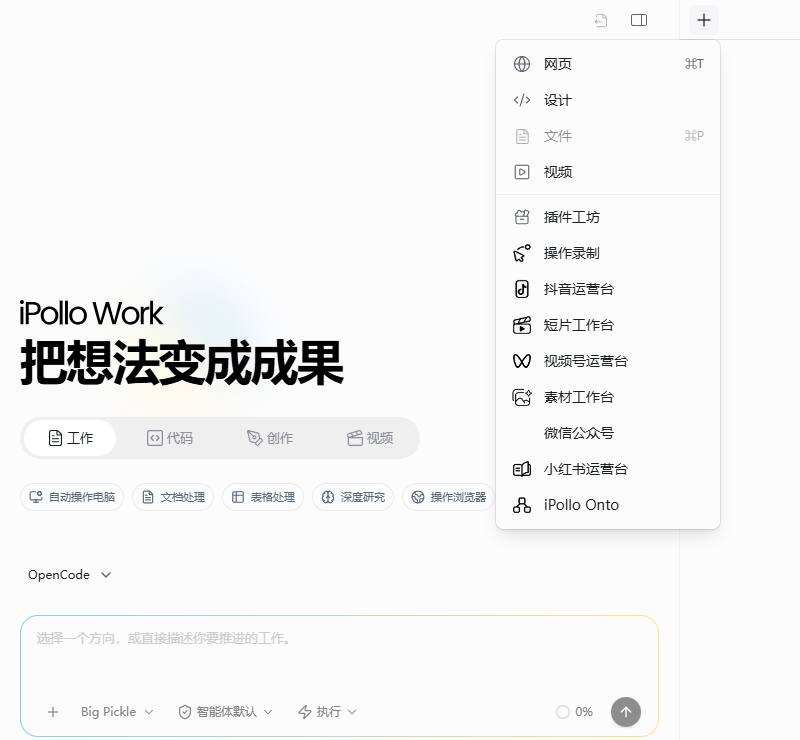
Open workbench plugins through the right-side + menu. Invoke Skill-only plugins from the task.
Completion check: The expected entry is visible, required resources are enabled and the connection matches the task.
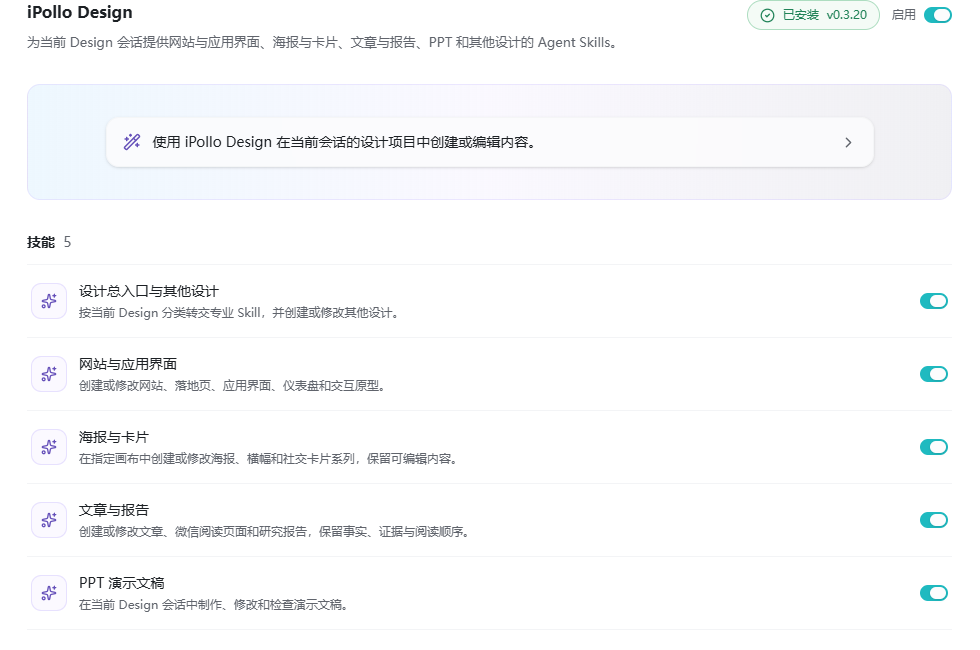
iPollo Design
Create editable websites, application interfaces, posters, reports and presentations.
Prepare: Enable the plugin and prepare brand references and dimensions.
-
Start a creation task and choose the design category.
-
Specify audience, content, dimensions and references.
-
Inspect and revise the Design canvas, then export and open the result.
Completion check: The design remains editable and the export matches the preview.
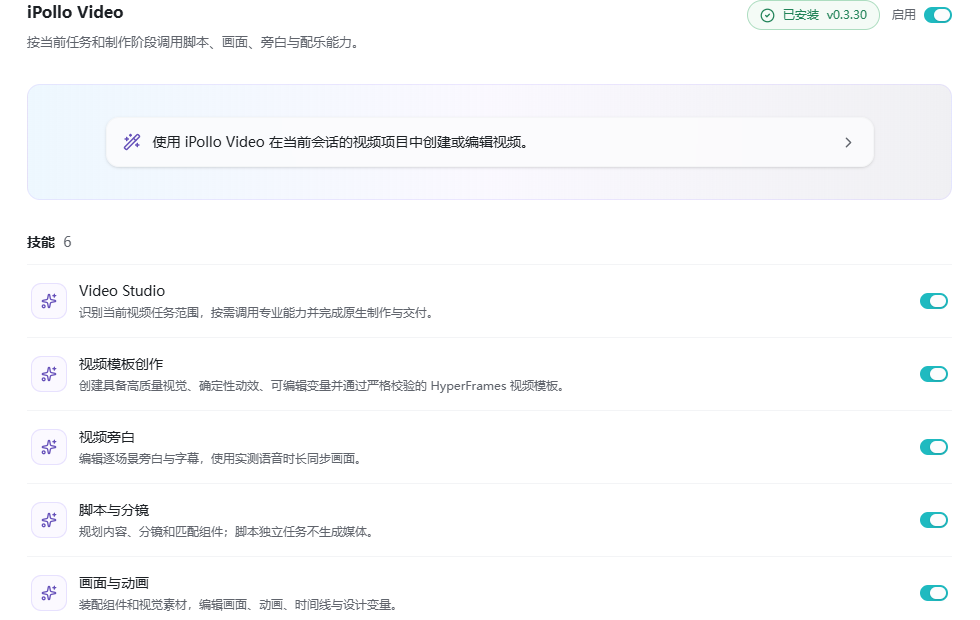
iPollo Video
Combine scripting, storyboards, animation, narration, music and video templates.
Prepare: Connect any model or media service needed for generation.
-
State the audience, aspect ratio and duration in a new video task.
-
Review the script and storyboard before generating media.
-
Inspect scenes, captions and audio in Studio; save the project, export and play it.
Completion check: The project, assets and playable video can be located. A script alone is not a rendered film.
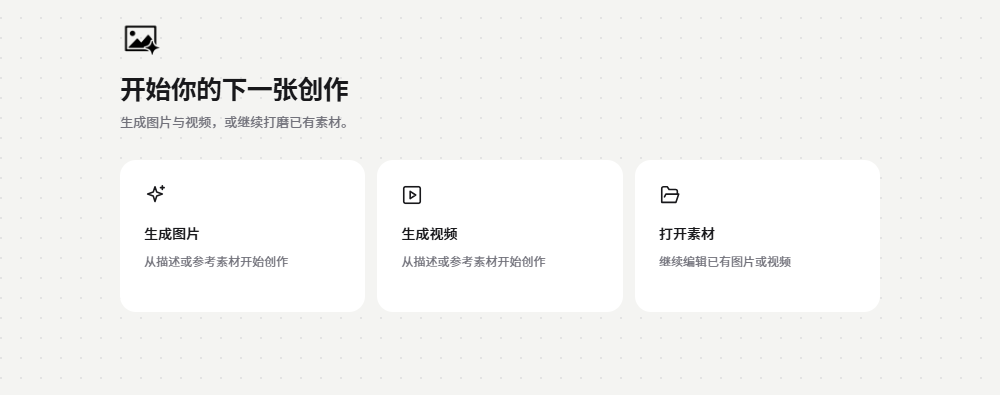
Media Studio
Generate images and videos or edit existing media using smart, brush and shape selections.
Prepare: Prepare usable source media and connect a service for AI generation or editing.
-
Open + → Media Studio and import or generate media.
-
Select the target region and describe the edit.
-
Preview, save a new version and reuse it in the original project.
Completion check: The real asset opens and the original and edited versions can be distinguished.
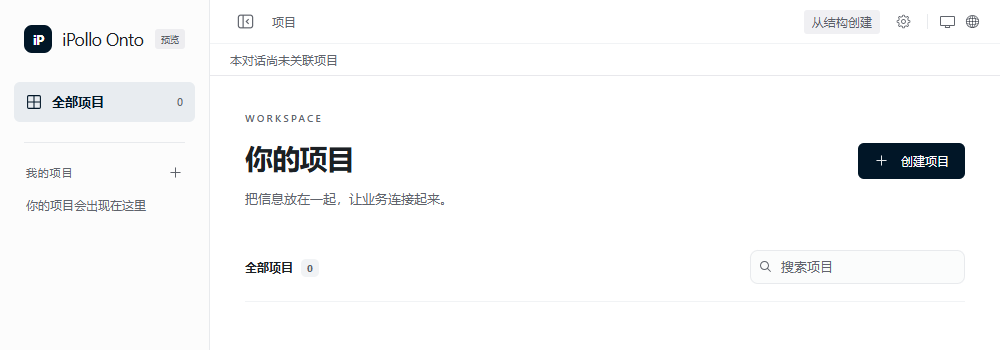
Short Video Studio
Organize scripts, storyboards, characters and assets on a canvas, then hand tracks to native Work editing.
Prepare: Enable the plugin and prepare the project and required generation channels.
-
Open + → Short Video Studio and select or create a project.
-
Add note, image, video and audio nodes; organize the story and inspect generation records.
-
Arrange tracks and use the handoff action to continue editing in Work.
Completion check: The project reopens with assets and storyboards, and transferred tracks remain editable.
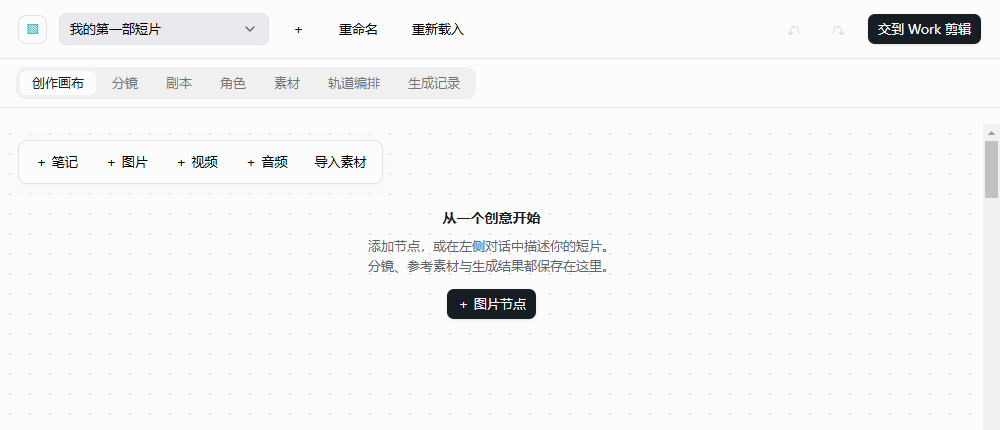
Plugin Workshop
Build interfaces, MCP, Skills and scripts through conversation; import source, preview and export a plugin.
Prepare: Prepare a concrete requirement or an existing plugin source ZIP.
-
Open + → Plugin Workshop. Describe inputs and outputs or import source.
-
Preview the interface and inspect resources and permissions.
-
Try the plugin and export an installable package; export source separately for continued development.
Completion check: The client recognizes the exported package and installed resources and entries appear.
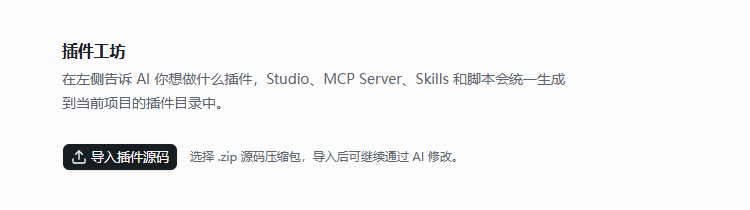
Operation Recorder
Turn reviewed actions into a reusable Skill; Chrome Recorder UserFlow JSON can be imported.
Prepare: Check capture availability; prepare browser Recorder JSON if desktop capture is unavailable.
-
Open + → Operation Recorder and inspect capture status.
-
Start recording when supported, or expand Import browser recording and select the JSON. Pause for private input.
-
Review steps and variables, compile the Skill and validate it on a small task.
Completion check: The Skill has understandable steps, variables and checks. An unavailable desktop recorder requires the browser-import route.
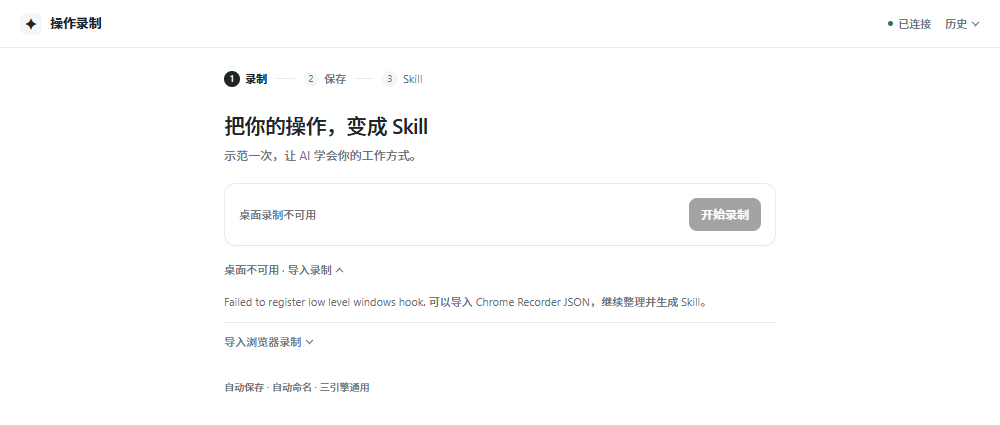
iPollo Onto
Manage business tables, typed fields, relations, documents and saved views using embedded SQLite.
Prepare: Use a compatible client; ordinary local operation does not require PostgreSQL.
-
Open + → iPollo Onto and create a project.
-
Create tables, define fields and enter or import records; add relations and saved views.
-
For AI access, copy the actual project API / MCP address and configure only the required scope.
Completion check: Records, relations and views reopen. PostgreSQL is optional; verify role and multi-user authentication support separately.
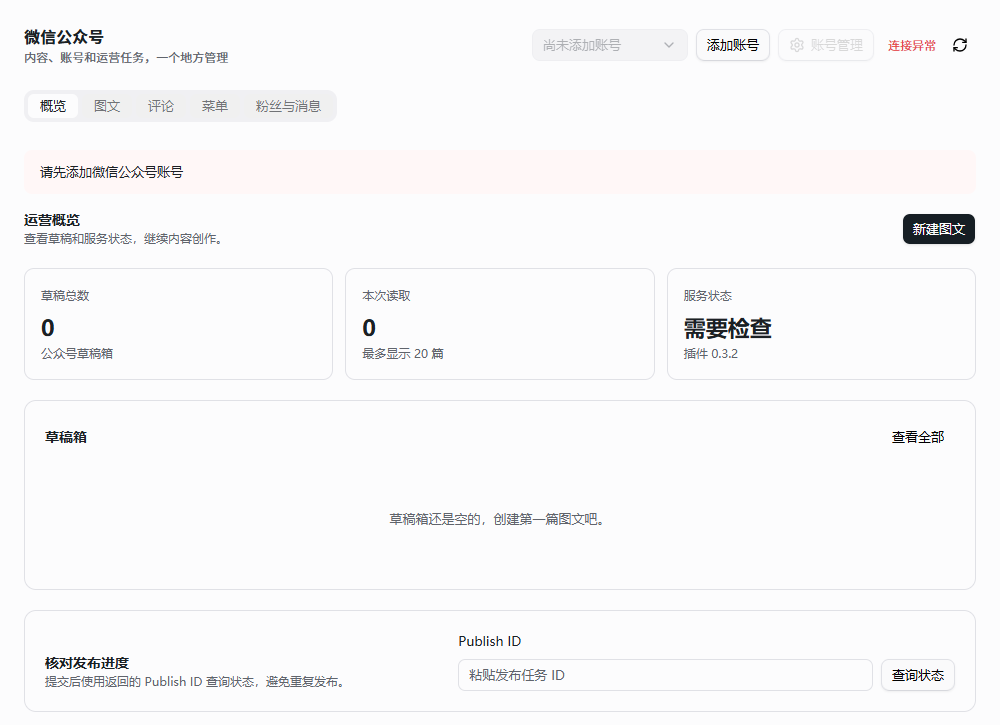
WeChat Official Account
Manage article drafts, assets, publication status, comments, messages, followers and menus.
Prepare: You need administration access and the plugin account configuration.
-
Open the workbench and add the intended account.
-
Prepare the title, abstract, body and cover; save and preview a draft.
-
Confirm account and content before publishing, then query the publication task ID.
Completion check: The draft or publication record can be verified in the target account. An unconnected interface does not establish publication.
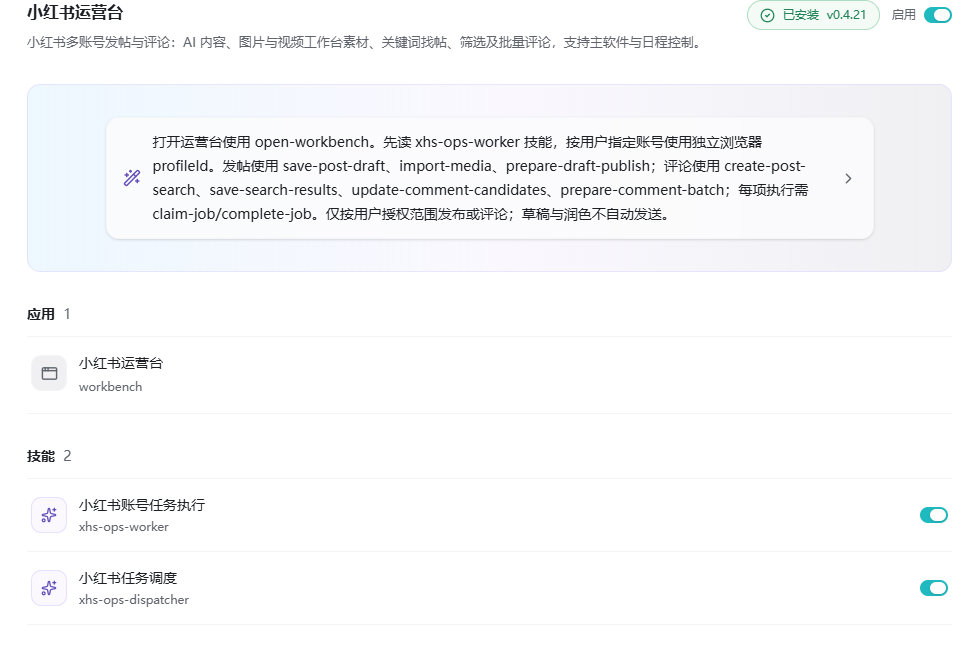
Xiaohongshu workspace
Manage accounts, image/video drafts, assets, searches, comment candidates and publication records.
Prepare: Verify each account using its separate browser session.
-
Open + → Xiaohongshu workspace and add and verify an account.
-
Prepare the title, body and topics; upload or import media and inspect the preview.
-
Confirm the account and content, publish when authorized and inspect the real record.
Completion check: The editable draft and publication or comment record match the intended account. Schedules need an online app and valid account.
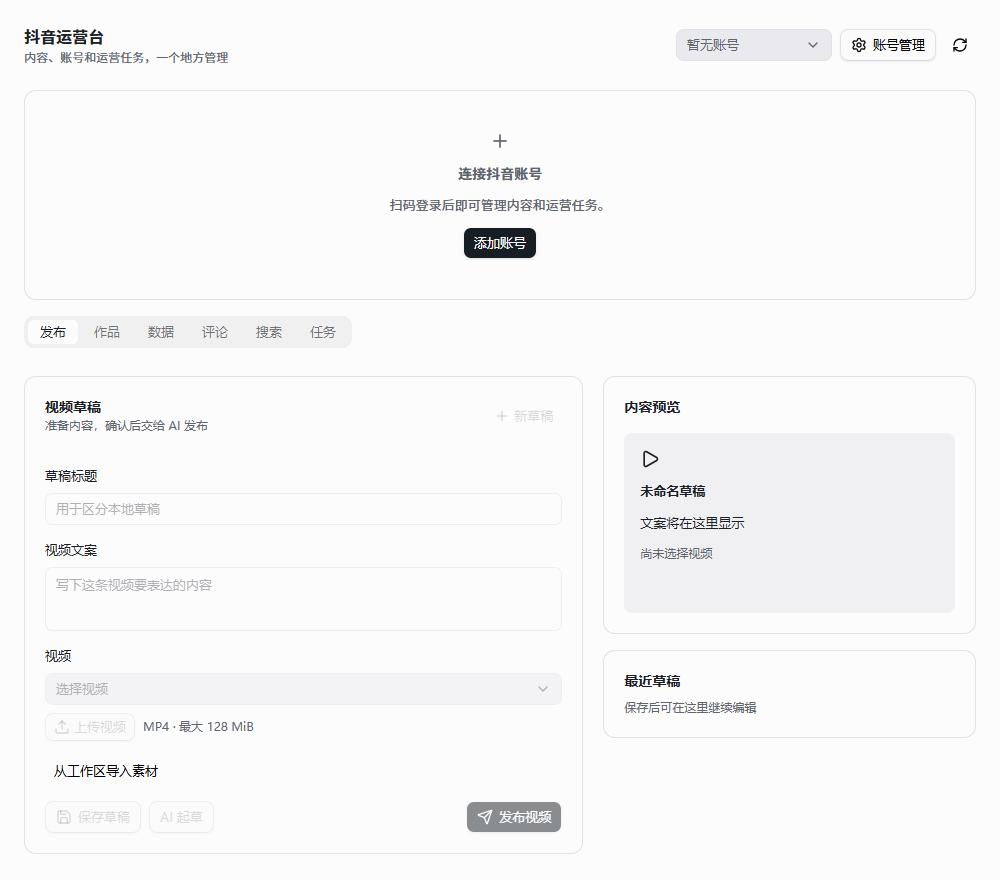
Douyin workspace
Manage accounts, video drafts, work statistics, comments and confirmed comment tasks.
Prepare: Browser sign-in is available without first creating a developer application key.
-
Add the account and sign in by QR code. Verify nickname and account ID on the profile.
-
Create a video draft, enter copy and import a local MP4.
-
Confirm publication, then inspect the work, statistics or task record.
Completion check: The correct account and actual platform result can be checked. The account owner handles verification prompts; inspect uncertain results before retrying.
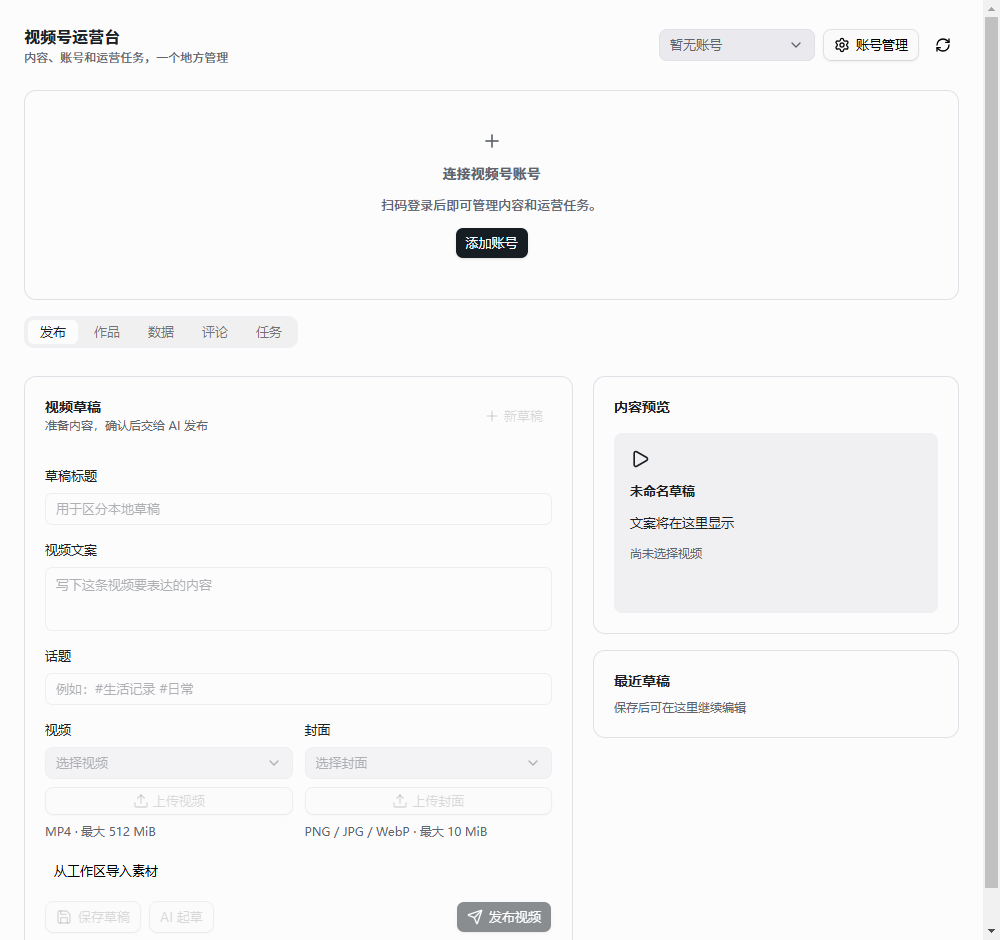
WeChat Channels workspace
Manage profile, video and cover drafts, statistics, comments and execution records through the account assistant session.
Prepare: You need permission to manage and sign in to the target channel.
-
Open Manage accounts and sign in by QR code. Check nickname and channel ID.
-
Create a draft, import video and cover and inspect the content.
-
Run the confirmed task and inspect acceptance, review or publication status.
Completion check: The draft version matches the execution record. Prepared status alone does not establish publication.
Context7
Retrieve documentation that matches the actual dependency version.
Prepare: Enable the plugin, its remote MCP and required Skills.
-
Open Context7 under personal plugins and check its resources.
-
State the library, installed version, goal and question.
-
Check the returned documentation and version before implementation or migration.
Completion check: The answer has relevant documentation and uses APIs matching the target version.
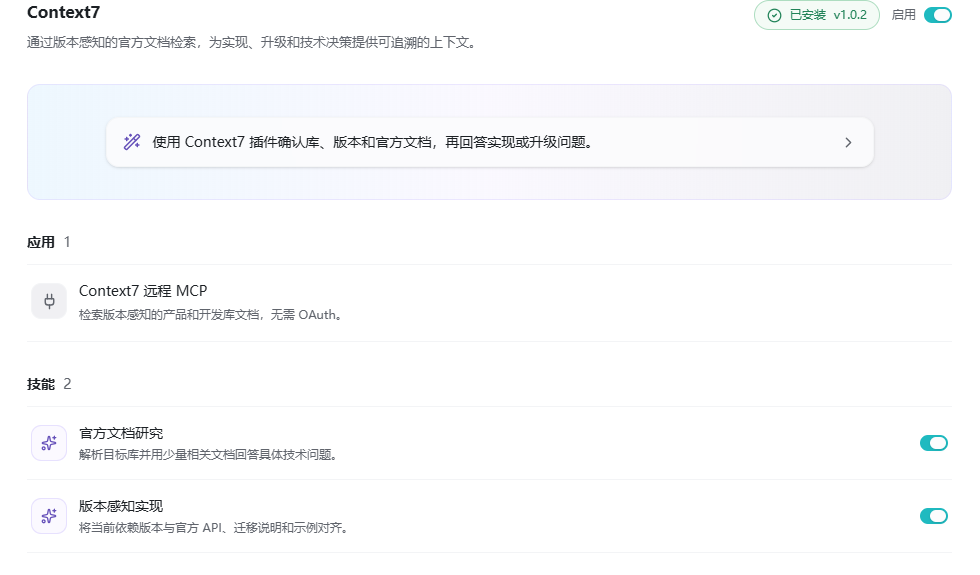
Figma
Connect Figma Desktop for design reading, implementation, Code Connect, systems, canvas and motion workflows.
Prepare: Sign in to Figma Desktop, open the Design file and enable its Desktop MCP server.
-
Enable local MCP in Figma Desktop Dev Mode.
-
Use Connect Figma Desktop in plugin details and verify status.
-
Supply the file link, node and intended operation in Work; inspect the actual target result.
Completion check: The requested node is readable and writes or implementation can be checked in the intended file.
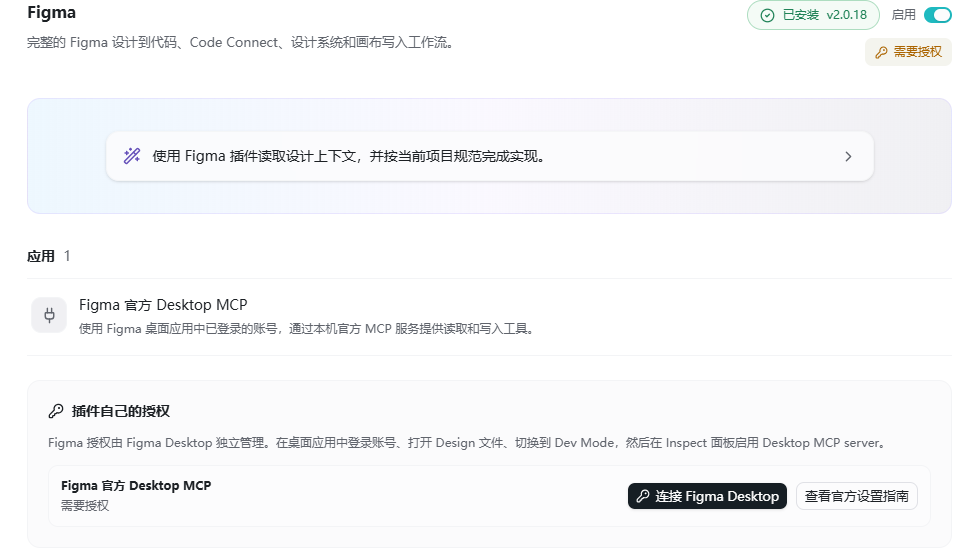
GitHub
Investigate repositories, PRs, Issues and Actions, address review comments and prepare confirmed changes as Draft PRs.
Prepare: Connect an account with access to the target repository.
-
Connect in plugin details and supply the repository, PR or Issue link and goal.
-
Read the investigation before approving needed changes.
-
Specify the destination branch for commits or PRs and inspect the actual diff and checks.
Completion check: The report or PR belongs to the right repository. Reading, pushing and merging have separate task scopes.
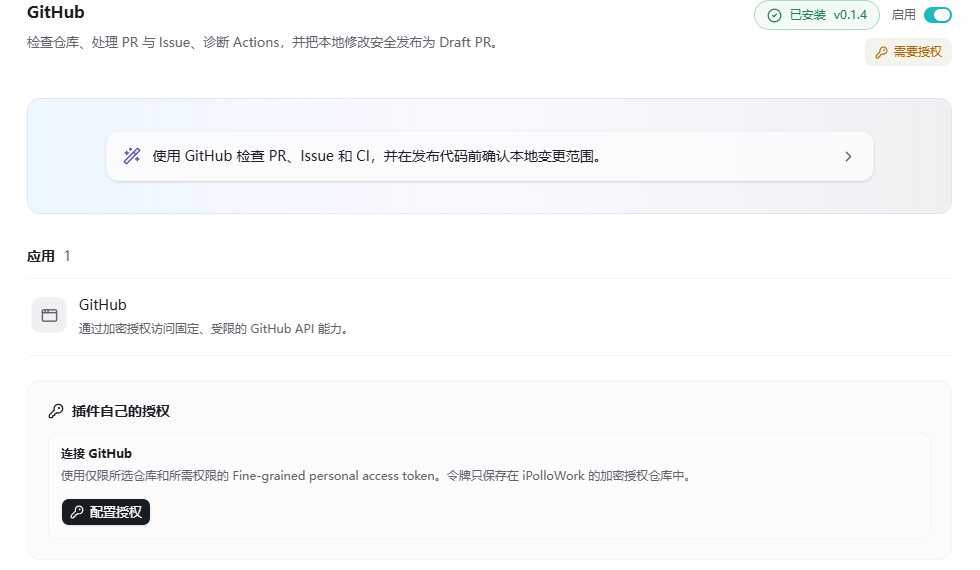
DeepSeek Harness
Delegate development, review or research from an OpenCode task and inspect progress, reports and patches.
Prepare: Connect DeepSeek and check the bundled runtime.
-
Use Connect DeepSeek in plugin details.
-
Check service status, then state the directory, goal and deliverable before delegating.
-
Read progress and results and review patches before adopting them.
Completion check: Readable task status and results match the original scope; calls require valid account access and quota.
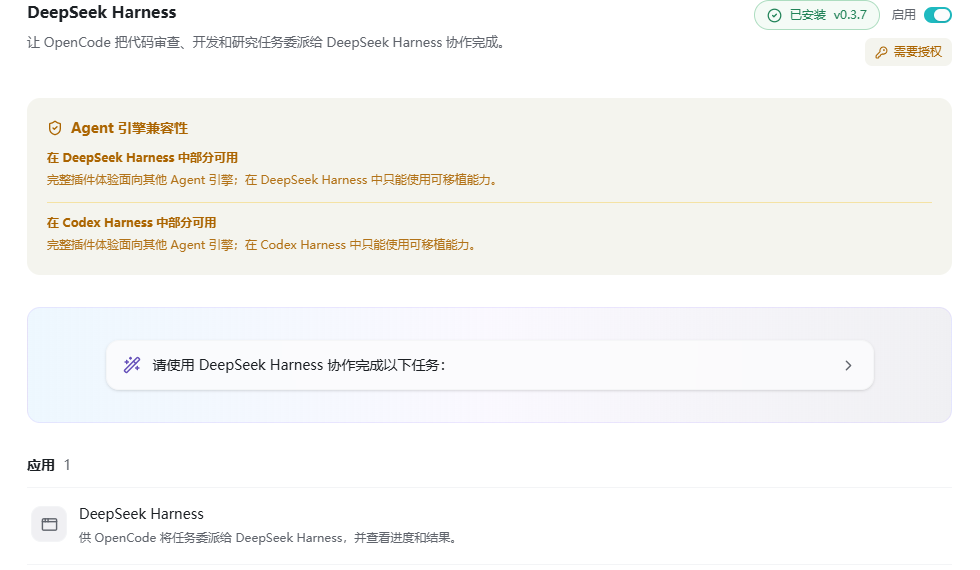
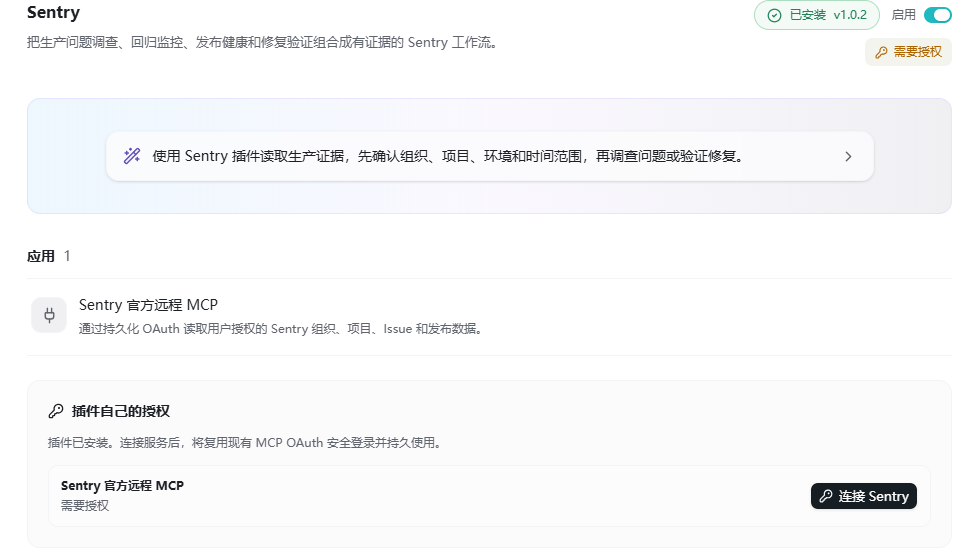
Jev DSH decision engine
Return structured choices and scores for tools, Skills, agents and outputs; the current agent still performs actions.
Prepare: Create a TypeSafe AI key and save it in the connection page.
-
Connect TypeSafe AI and inspect local configuration before a connection test.
-
Provide the task, candidates and explicit scoring criteria.
-
Review the choice, score and rationale before the current task continues.
Completion check: The judgment matches the supplied candidates. Tests send a minimal evaluation request; evaluated content is transmitted to TypeSafe AI.
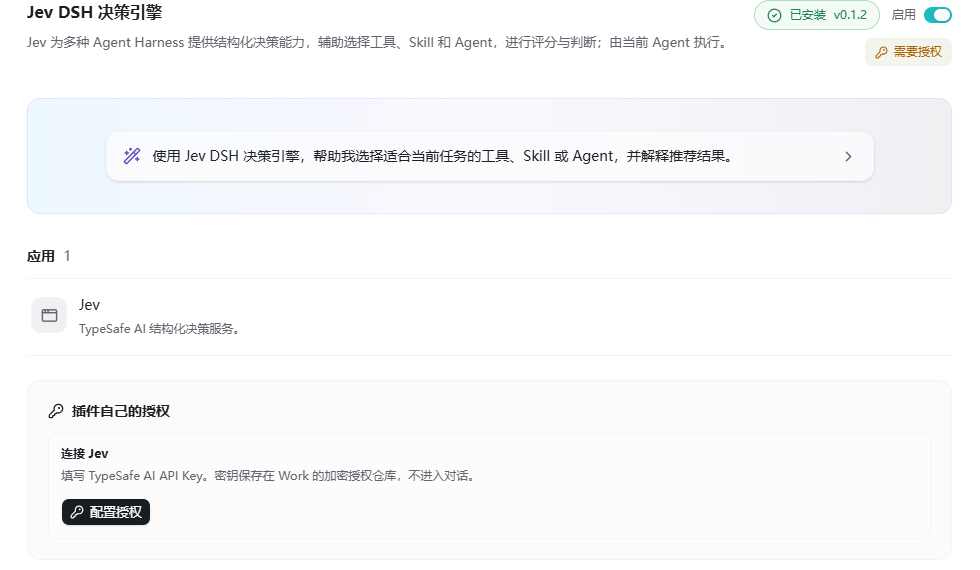
Notion
Search team knowledge, manage database records and organize content in explicit pages.
Prepare: Complete OAuth and grant access to the intended pages or databases.
-
Connect Notion and supply the topic or target page/database link.
-
Check sources, fields and the intended write destination.
-
After confirming the update, perform it and open the target page.
Completion check: The result and sources are traceable and the correct database or page changed.
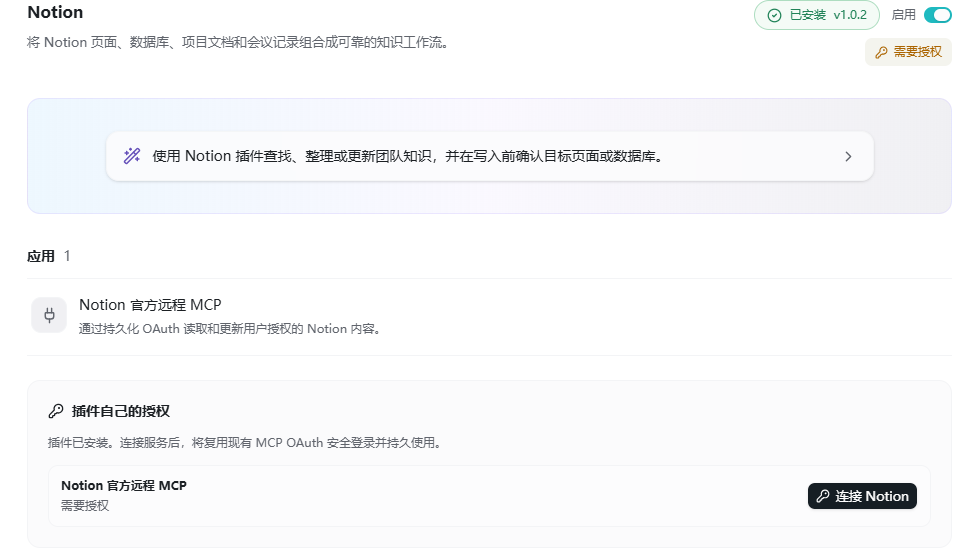
Linear
Triage Issues, plan sprints, track delivery and update projects while preserving owners, priorities and dependencies.
Prepare: Authorize the intended workspace and team.
-
Connect Linear and identify the team, project, cycle or Issue.
-
Inspect duplicates, priorities, dependencies and owners.
-
Confirm updates and read back the Issue or project state.
Completion check: Changes belong to the right team and match the acceptance criteria.
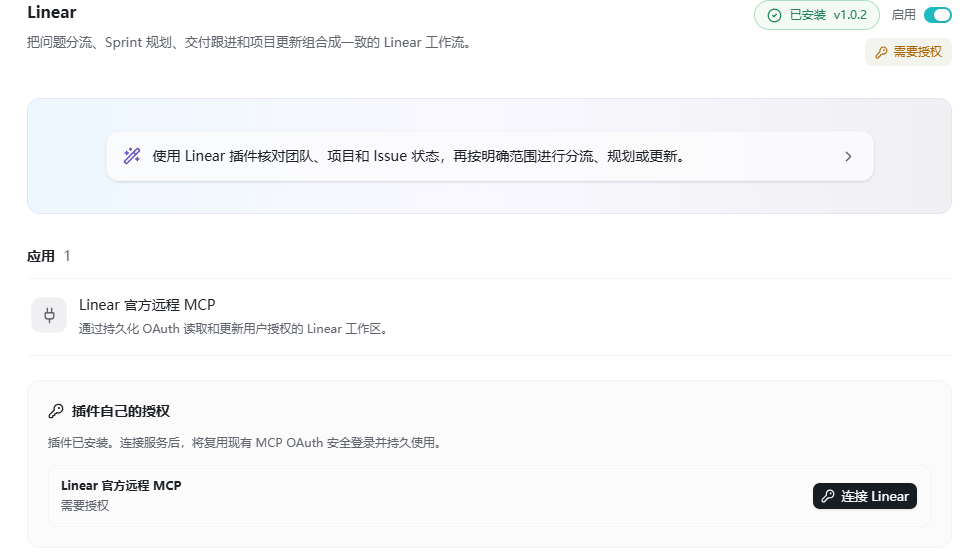
Sentry
Investigate events, stacks, releases and regressions and check post-release fix evidence.
Prepare: Complete OAuth with access to the target organization and project.
-
Connect and identify the Issue or release and time window.
-
Inspect stacks, tags and timelines; separate observed facts from root-cause hypotheses.
-
After a fix ships, compare relevant events in the same scope.
Completion check: The investigation cites actual events and releases, and fix claims have post-release evidence.
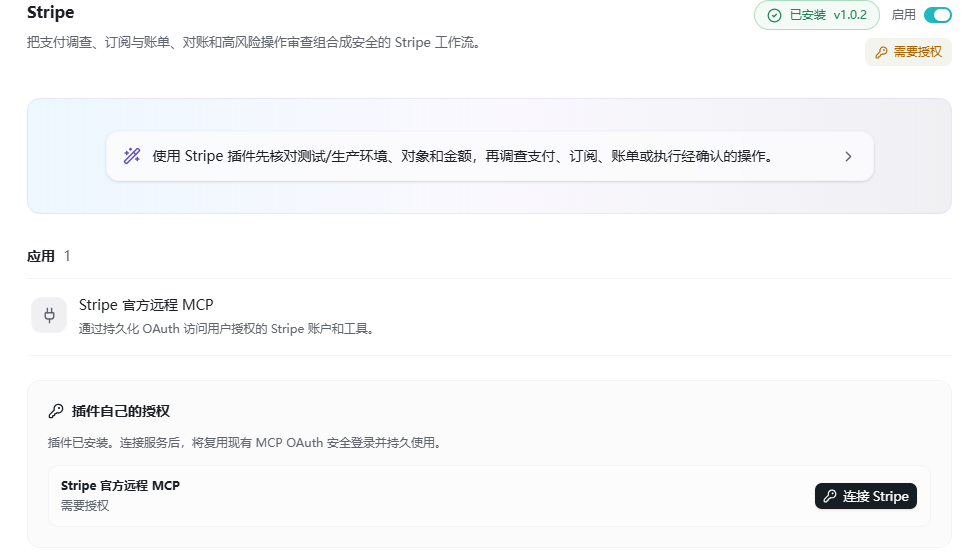
Stripe
Investigate payments, subscriptions, invoices and reconciliation, including checks before refunds or cancellation.
Prepare: Authorize the correct account and verify test or live mode.
-
Connect and check the environment. Provide the payment, customer, subscription or invoice ID.
-
Read records first and compare amount, currency and time.
-
Confirm the object and amount before a refund or cancellation, then check status.
Completion check: The correct financial object and real account status can be verified.
Reference material and shared context
The internal reference-material helper is managed by the application and is not an independently installed personal plugin. Attach the documents, images and project files to the current task. Explain which are facts and which are visual references, review source usage and specify the newest version when revising.
Supplementary source modules
The following source modules are outside the current default personal plugin catalog. Obtain a complete package matching the client, inspect its resources and permissions, and validate it in a suitable project before use.
LabelU annotation
- Import supported image, video, audio or text material. PDF, Word and TXT inputs can provide text for annotation.
- Define the labels, annotate and save, then switch to reviewer mode to inspect the results.
- Export approved JSON and deliver original media separately when needed.
Completion check: Annotations and review state reopen correctly. Export does not automatically convert the data to COCO or YOLO.
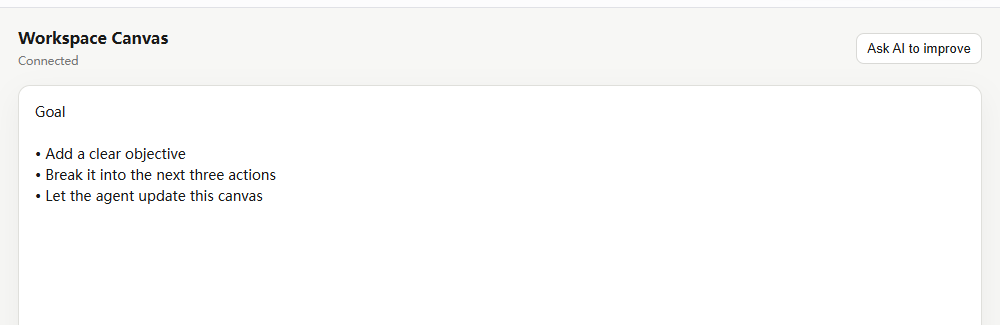
Workspace Canvas
- Import the matching source through Plugin Workshop and inspect the resulting plugin.
- Open the canvas, edit goals and actions, and request agent changes with a clear scope.
- Save or export and reopen the canvas to verify the structure.
Completion check: Goals, nodes and actions persist, and edits affect the intended content.
Acme Research example
Use this development example to study manifests, research Skills, local services and credential configuration. Replace the example services and data sources, declare narrow access and test the packaged plugin in an isolated project. It is not a ready-connected search product.
Next: continue reading, or browse the complete feature index.